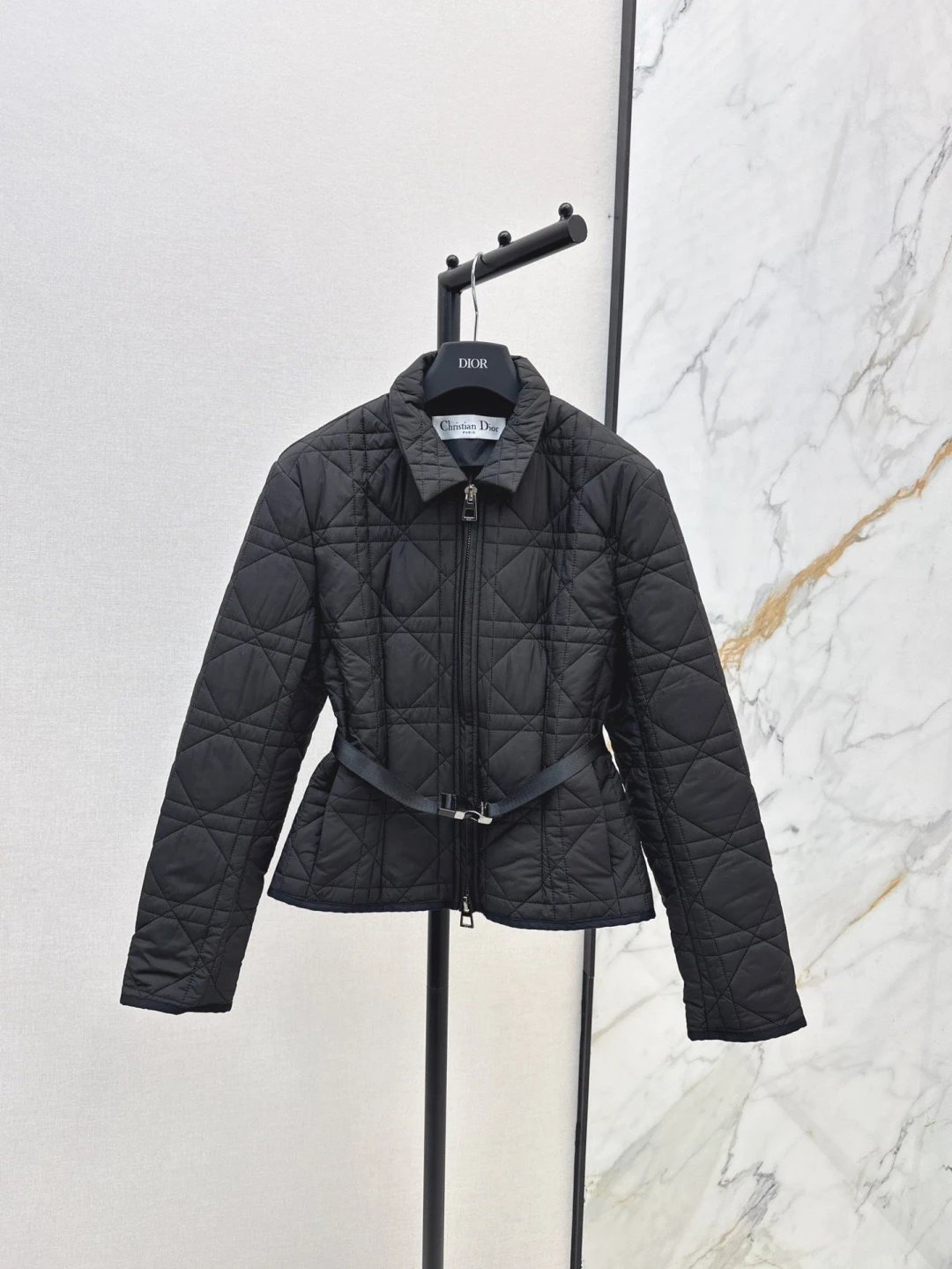
A Yupoo spreadsheet turns image albums into a product index. Instead of remembering where an album appeared in a timeline, you can search a consistent item ID, filter by a normalized category and open a permanent item page. The spreadsheet is most useful when you understand which fields are exact identifiers and which are editorial navigation labels.
Start with the strongest clue
An item ID is the strongest clue because it points to one catalog record. A product code from a title can also help, although codes may repeat across unrelated sources. Descriptive searches such as black jacket or running shoes are broader and should be followed by image comparison.
Brand and category filters narrow results, but they should not replace the item ID in a final inquiry. Taxonomy can be corrected as the catalog improves, while the numeric record remains stable.
Read the product card
Cards show an image, product name, category and item ID. They do not show price, stock or checkout controls. Open the page before contacting because the cover may not show every color or variation in the gallery.
The WhatsApp shortcut on a card is convenient, but the item page provides the fuller reference and related products. Use the page URL when you want the clearest conversation.
Use filters without creating confusion
Apply one or two meaningful filters, then clear them when switching intent. A brand filter combined with a category can be useful; a long chain of sort and search parameters is harder to share. Core category and brand pages have clean URLs, while filter combinations remain navigation states rather than separate SEO pages.
Pagination keeps every group of products reachable to crawlers and visitors. Moving to the next page does not change the identity of the items already viewed.
Build a shortlist
Open promising items in separate tabs and record their IDs. Compare visible details side by side. When contacting, send a small shortlist with one line per item and a clear requested variation.
- Search by ID if available.
- Otherwise select a main category.
- Add a brand or descriptive term only when useful.
- Open and review complete item pages.
- Send exact IDs in your inquiry.
Turn a long browsing session into a repeatable search
Begin by naming your search intent in one sentence. “Find Item 1842” is an exact lookup, while “compare black jackets” is exploratory. Exact lookups should use the ID field first. Exploratory sessions should begin with a main category and then add one discriminating clue. This order matters because broad keyword searches can match titles, codes and editorial labels at once. If a result set looks wrong, remove the last filter before adding another; otherwise you may create a narrow empty state without knowing which condition caused it.
Result counts describe the published catalog, not inventory. A brand count means that many visible records are associated with the label under the current mapping. It does not claim that all items are available or that every source album was categorized perfectly. The same caution applies to “newest” sorting: it can reflect a source date or catalog ordering rule, not a guarantee that the product was newly manufactured. Use counts and sorting to navigate, then use the item page and current inquiry to make decisions.
For comparison, choose a fixed set of fields before opening items: item ID, category, visible color, major design details and the number of available images. Save the canonical item URLs in a note or table. Do not copy only image CDN addresses because those omit the surrounding record and may change. If two items look identical, keep both IDs until you have compared the entire gallery. Differences often appear in later photos, and merging the records too early can produce the wrong reference in a message.
When you return later, restart from the saved item URLs instead of trying to reconstruct the same filter query. The catalog may contain new records, so a page number or sort order can shift. Canonical pages are built for persistence; search states are built for discovery. This division also protects search quality: the site can keep useful filter combinations out of the index while ensuring categories, brands, guides and every published item remain reachable through stable links and server-rendered pagination.
- Write down whether the search is exact or exploratory.
- Use an ID first or one main category first.
- Add a single discriminating filter.
- Compare a fixed set of visible fields.
- Save canonical item URLs rather than result pages.
Useful tips
- Use singular search terms first.
- Do not share a URL with temporary sort parameters as the only reference.
- Check related products for nearby options.
- Return to the spreadsheet to reset filters.
Common questions
Is the spreadsheet a Google Sheet?
Here, spreadsheet describes the searchable catalog experience. The public pages are server-rendered web pages designed for large product collections.
Why is a result missing?
The item may be unpublished, recategorized or not yet imported. Try the numeric ID, a shorter term, or WhatsApp.
Can I sort by popularity?
The catalog supports a curated popular order without inventing sales counts. It does not display fake popularity numbers.